Docs · For businesses
Connecting Stripe and getting verified
Bona confirms a reviewer is a real, paying customer by checking their invoice number against your own Stripe account. To do that we need a Restricted API Key (RAK) — a key you create yourself, scoped to read-only access to exactly four resources. Bona can't charge, refund, or change anything in your Stripe account with it, and you can revoke it at any time from your Stripe Dashboard.
1. Start creating a restricted key
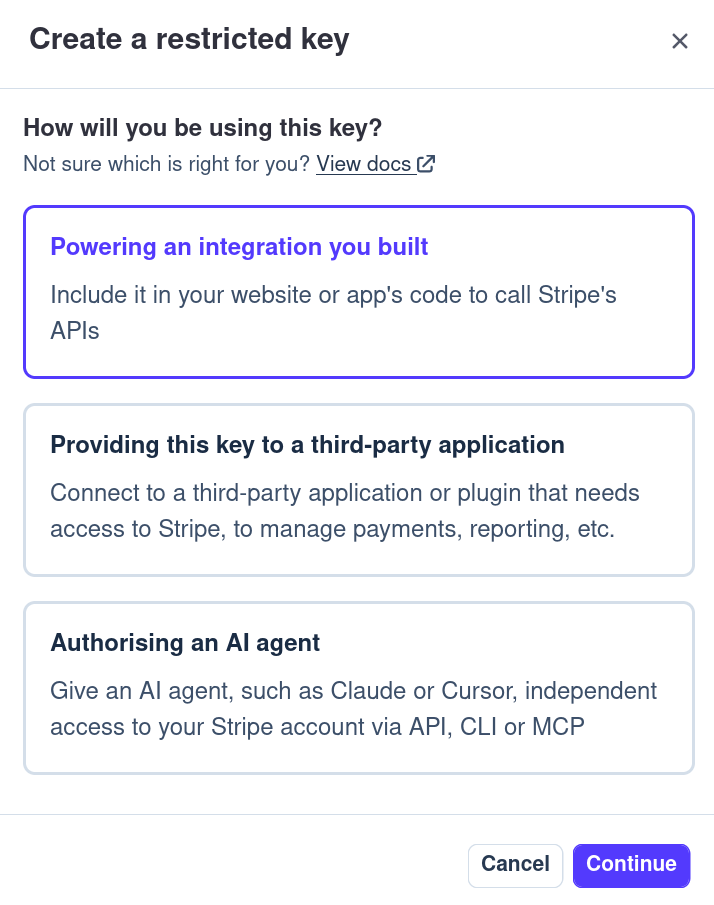
In your Stripe Dashboard, go to Developers → API keys and choose Create restricted key. Stripe first asks how you'll use the key — pick Powering an integration you built. Bona is technically the third-party option here, but that path pre-fills a starter set of permissions and an extra name/URL form; this one starts you from a blank slate, which is less to double-check. Either way you end up with the same kind of key and the same permission picker — this choice doesn't change what the key is capable of.
2. Skip the templates
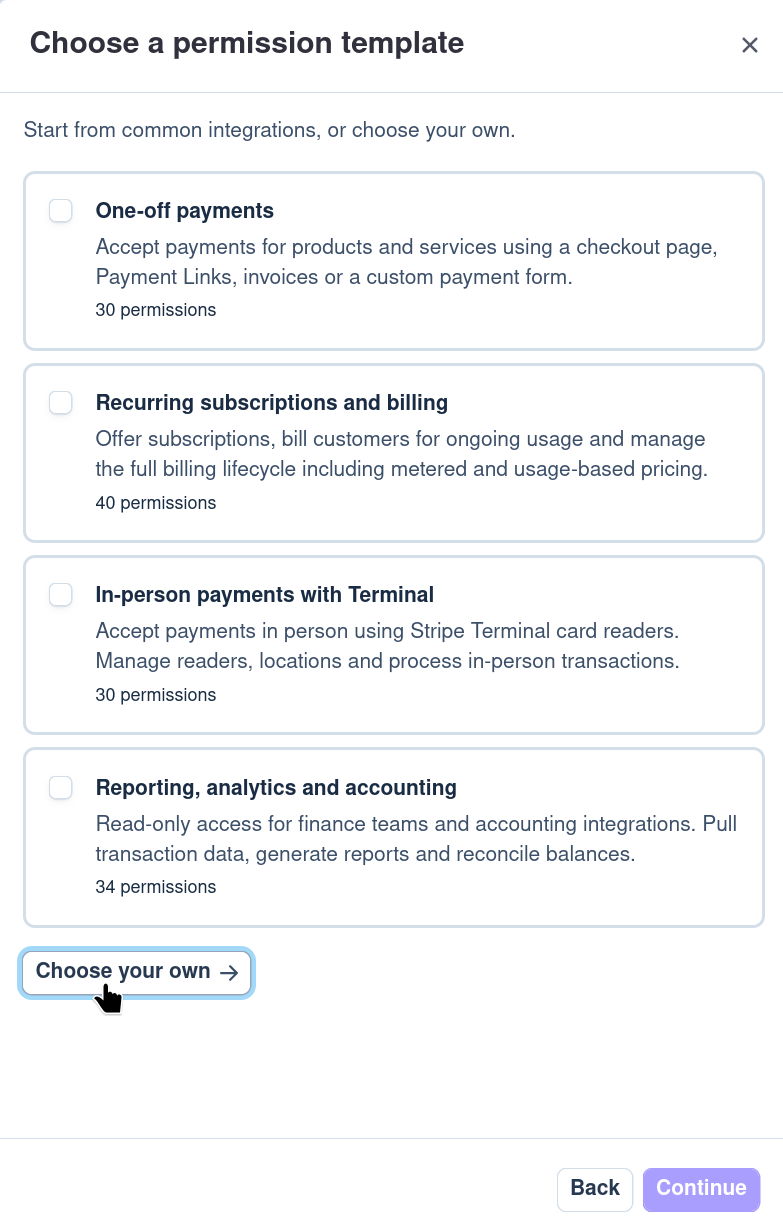
Stripe offers a few permission templates for common integration shapes — none of them match a narrow, read-only case like Bona's. Click Choose your own rather than checking one; a template starts you with 30-40 permissions and you'd spend more time deselecting the ones you don't want than you would setting the four you do.
3. Set permissions to exactly this
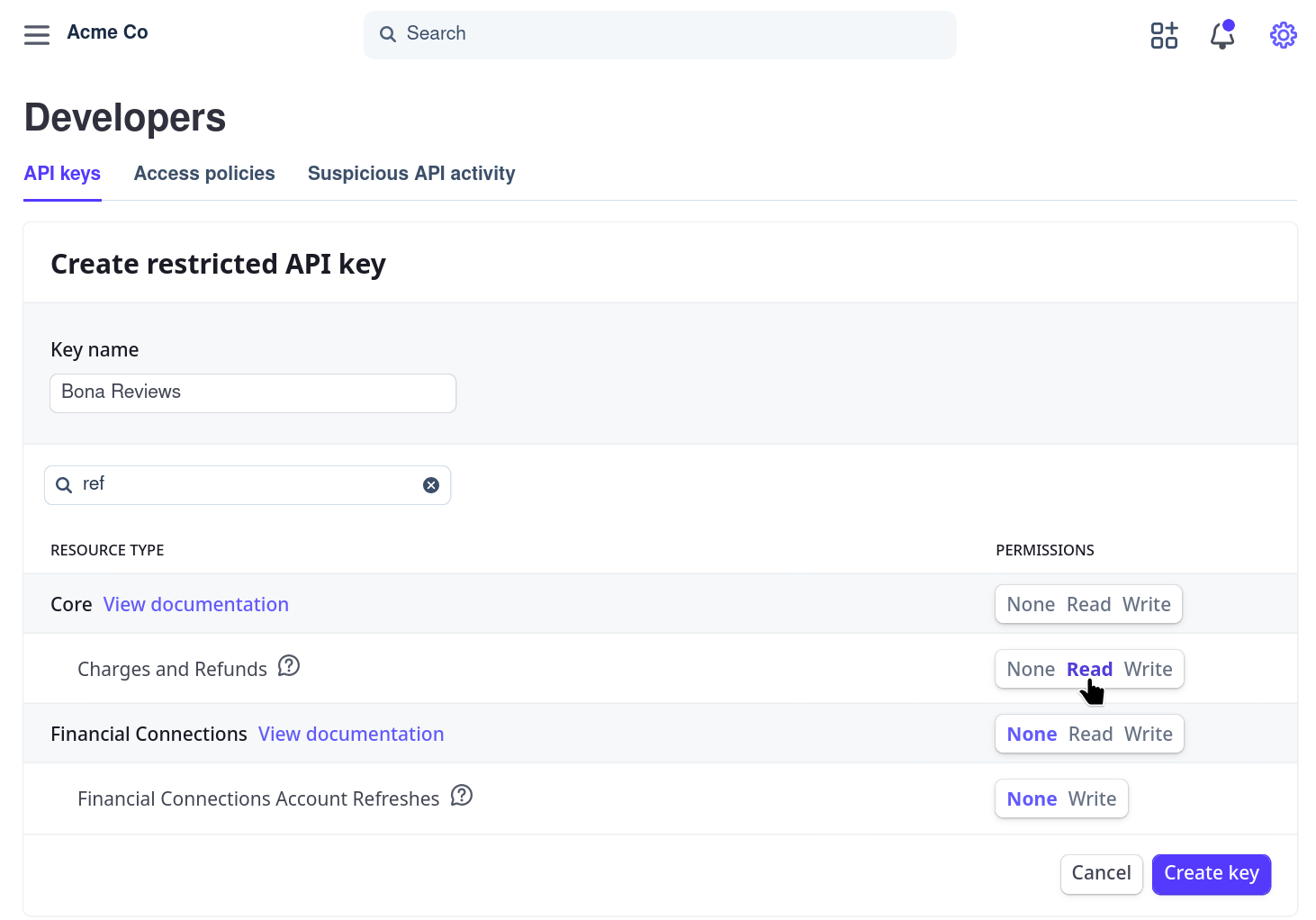
You're starting from zero, so everything defaults to None. Stripe's resource list is long — use the search box to jump to each one by name rather than scrolling. Set these four to Read and leave everything else alone. This is the same checklist Bona shows you on the Connect Stripe page, so you can flip back and forth to check your work.
- Customers
- Read
- Subscriptions
- Read
- Invoices
- Read
- Charges and Refunds
- Read
- Everything else
- None
4. Copy the key
Stripe shows the full key exactly once. Copy the whole thing — it starts with rk_live_ (or rk_test_ if you're using a test-mode key).
5. Paste it into Bona
On your Connect Stripe page, paste the key and submit. Bona checks it against your account immediately and tells you right away if anything's wrong rather than waiting for a review request to fail.
If something's off
- Missing permissions — the key is valid but one or more of the four resources above isn't set to Read. Bona tells you which ones. You don't need to start over: open the key in Stripe (overflow menu → Edit key), fix just those permissions, and save.
- Rejected by Stripe — usually means the key wasn't copied in full. Create a new one rather than trying to fix a partial paste.
Ongoing checks
Bona re-checks every connected key once a day, so if you narrow its permissions or revoke it in Stripe later, we notice on our own rather than waiting for a reviewer's request to fail. Your Connect Stripe page always shows the result of the most recent check, including how long ago it ran. If you want to see exactly what Bona has been doing with the key, Stripe keeps a log of every call — open the key's overflow menu and choose View request logs.
Keep the key connected — it's not just a one-time setup step. If it's missing or gets revoked, Bona can't verify new invoice numbers, so no new review requests can go out until you reconnect a working key. Reviews you've already collected and published aren't affected either way.